
Linking Google Analytics 4 to BigQuery lets you export your raw event data and work with it outside the GA4 interface.
This is one of the most useful integrations in GA4, especially when you need more flexibility for analysis, want to combine Analytics data with other business sources, or need to work beyond the limitations of the standard reports. Once the link is set up, GA4 exports data into a BigQuery dataset named analytics_<property_id>.
Contents
What the GA4 and BigQuery link is used for
GA4 reports are useful for day-to-day analysis, but they do not cover every use case.
By exporting data to BigQuery, you can query raw events with SQL, build your own attribution or funnel logic, join Analytics data with CRM or backend data, and create custom reporting pipelines. The exported data belongs to you in BigQuery, and access can be managed through BigQuery permissions.
What you need before linking GA4 to BigQuery
Before creating the link, you need a Google Cloud project with BigQuery enabled. You also need the right permissions on both sides.
At GA4 property level, you need at least Editor access to create the link. On the Google Cloud side, the email used for the setup must have Owner access to the BigQuery project. Google also allows exporting to the BigQuery sandbox, although sandbox limits still apply.
How to link Google Analytics 4 to BigQuery
The setup is done from the GA4 admin area.
Go to Admin, then under Product Links, open BigQuery Links. From there, create a new link, choose the Google Cloud project you want to use, select the data location and the export settings, and complete the connection.
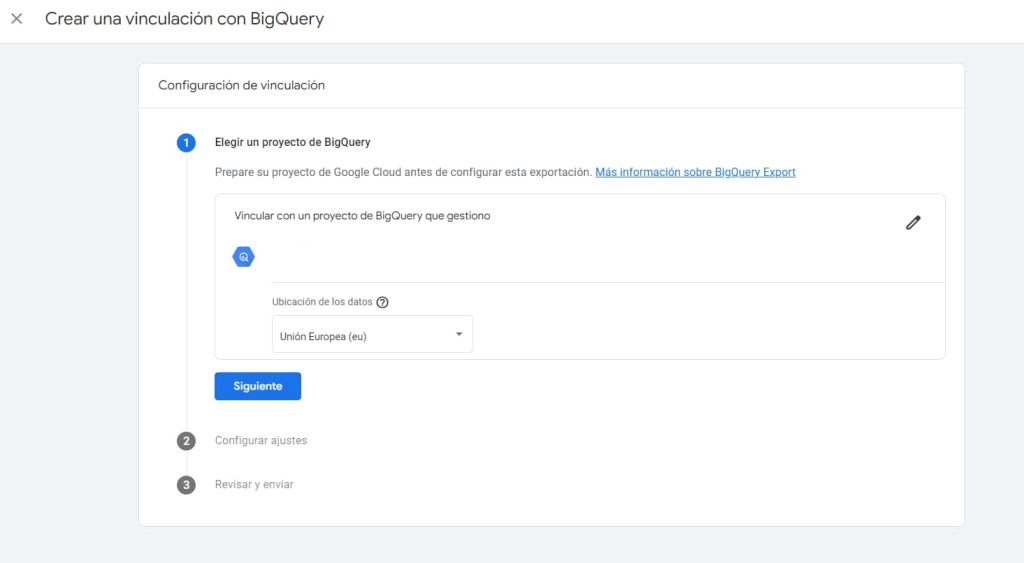
During the process, GA4 lets you choose the export frequency. Depending on the property and setup, you can configure daily export and, where available, fresh daily export. Google also notes that export behavior, limits, and availability depend on the property type and configuration.
What happens after the link is created
Once the link is active, GA4 starts exporting data to BigQuery going forward.
The data is not backfilled historically, so the export begins from the moment the link is created. After setup, the dataset is created in BigQuery and tables start appearing as the export runs. Google’s documentation also notes that data arrival is not immediate and depends on the selected export type.
What kind of data is exported
The export includes raw event data from the GA4 property.
That means you can work with event-level records instead of relying only on the processed data shown in the GA4 interface. In some setups, GA4 can also export user data tables when that option is enabled during setup. Those user-data exports create additional tables and come with their own schema and consent-related considerations.
Important things to keep in mind
There are a few points worth remembering before relying on the export for analysis.
First, BigQuery export is subject to GA4 collection and configuration limits. Second, GA4 reports and BigQuery data will not always match exactly, because the interface and the export are built differently and can apply different processing logic. Third, the link only starts collecting data from the moment it is configured, so it is worth setting it up as early as possible if you know you will need raw data later.
In short, linking Google Analytics 4 to BigQuery is one of the most valuable GA4 integrations if you need greater analytical flexibility.
It gives you access to raw event data, makes advanced SQL-based analysis possible, and opens the door to combining Analytics with other business data sources. For many teams, it is the step that turns GA4 from a reporting tool into a much more powerful analysis setup.
