
Linking Google Analytics 4 to Search Console allows you to view additional organic search data inside GA4.
This integration is useful because it brings part of your Search Console data into Google Analytics, making it easier to analyze organic search performance alongside the rest of your website data.
Contents
Steps to connect Google Analytics 4 to Search Console
Before activating the integration, it is important to make sure that both properties are collecting data for the same website.
You also need to have the right permissions in both tools. In Google Analytics 4, you need the Editor role. In Search Console, you need to be a verified owner of the property you want to link.
Inside the Admin section in GA4, go to Product Links and open Search Console Links. From there, click Link to start the process.
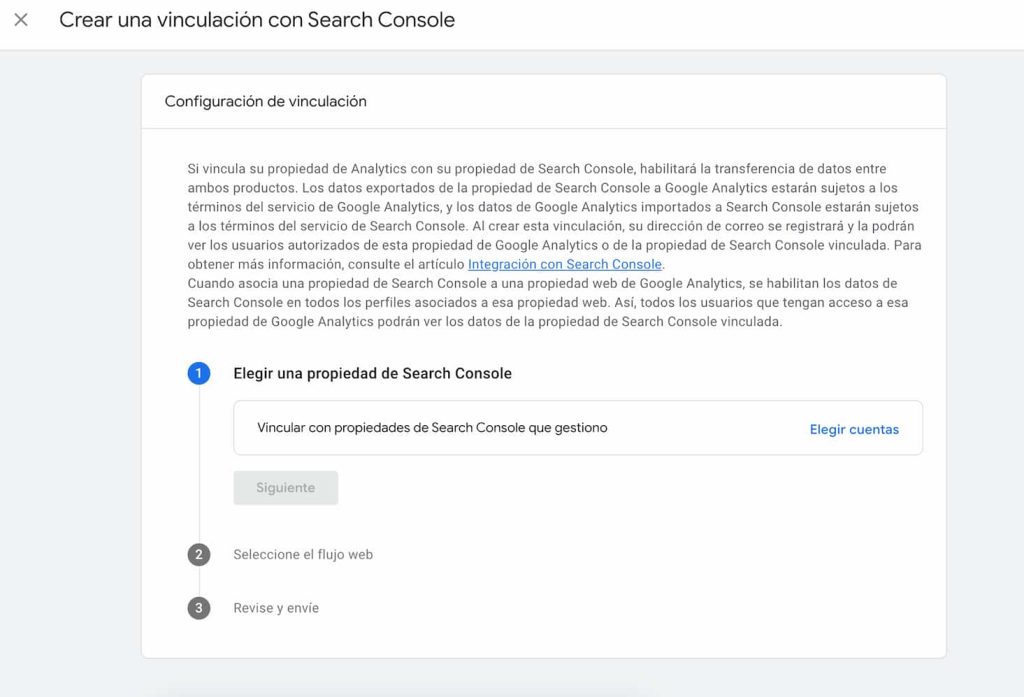
At that point, a new window opens and the setup is completed in three steps:
- Choose the Search Console property: The first step is to select the Search Console property you want to link. When you click the blue button, GA4 shows a list of the Search Console properties where your user has verified ownership. You just need to find the right one and select it.
- Select the GA4 data stream: The second step is to choose the GA4 web data stream that will be linked to Search Console. If the property has more than one data stream, you need to make sure you select the correct one. This matters because the Search Console link works at the level of the GA4 property and the selected web data stream.
- Review and save the configuration: The last step is to review the settings and confirm that everything is correct. GA4 shows the Search Console property and the selected web data stream so you can verify them before saving. Once you confirm the setup, the link is created.
Once the connection has been completed, the link appears in the table of Search Console links inside GA4. If you open it, you can see details such as the connected properties, the user who created the link, and the date when it was set up. This link cannot be edited later, so if you need to change it, you have to delete it and create it again.
How to add Search Console reports to GA4
After linking both products, GA4 makes two Search Console reports available inside the property.
These reports are related to organic search performance, but they are not always visible by default in the reporting navigation. To make them easier to access, you may need to add them from the Library section inside Reports.
From there, you can publish the relevant report collection or customize the reporting navigation so those Search Console reports appear in the GA4 interface.
Why this integration is useful
The main advantage of linking GA4 with Search Console is that it gives you a more complete view of organic search performance.
Instead of analyzing Search Console and Google Analytics separately all the time, you can use GA4 to review part of that organic search data together with engagement and conversion data from the website.
In short, linking Google Analytics 4 to Search Console is a simple setup, but a very useful one. If both properties belong to the same website and you have the right permissions, the process only takes a few steps. Once the link is active, GA4 can display Search Console reports that help you analyze organic search performance in a more integrated way.
